VoiceOver Compatible Apps: What That Actually Means in 2026
Published on March 18, 2026
Plenty of apps claim to be "VoiceOver compatible." But there's a big difference between technically working with a screen reader and actually being usable with one.
What VoiceOver Is
VoiceOver is Apple's built-in screen reader for iPhone, iPad, and Mac. It reads aloud what's on the screen and lets users navigate through gestures instead of visual cues. For blind and visually impaired users, VoiceOver transforms how they interact with their devices.
When an app works well with VoiceOver, blind users can do everything sighted users can do. When it doesn't, they hit walls: unlabeled buttons, confusing navigation, features that simply don't work without sight.
The Difference Between "Compatible" and "Usable"
An app can be technically compatible with VoiceOver while still being frustrating to use. Common issues include:
Unlabeled buttons. VoiceOver reads what developers tell it to read. If a button isn't labeled, users hear "button" with no indication of what it does. Tapping mystery buttons isn't a great experience.
Poor focus management. When navigating an app, VoiceOver moves focus from element to element. If focus jumps unexpectedly or gets stuck, users lose their place. Good apps guide focus logically through the interface.
Missing rotor actions. The VoiceOver rotor lets users access contextual actions with a twist gesture. Apps that implement custom rotor actions give users quick access to common tasks. Apps that don't force users to navigate through multiple screens for simple actions.
Inaccessible custom controls. Developers sometimes build custom interface elements that look nice but don't communicate properly with VoiceOver. A custom slider or picker that works fine visually might be completely opaque to a screen reader.
What Good VoiceOver Support Looks Like
Truly accessible apps go beyond the minimum. They're designed with screen reader users in mind from the start, not patched after the fact.
Clear, descriptive labels. Every interactive element has a label that explains what it does. Not just "button" but "Record new message" or "Play conversation."
Logical navigation order. Swiping through the interface moves in a predictable sequence that matches how the app is actually used. Users can build mental models of where things are.
Helpful hints. VoiceOver can announce hints that explain how to interact with elements. Well-designed apps use these to guide users: "Double tap to start recording" or "Swipe up or down to adjust playback speed."
Custom rotor actions. Thoughtful apps add rotor actions for frequent tasks. In a voice messaging app, for example, rotor actions might let users skip between messages, adjust speed, or jump to unplayed content without navigating through menus.
How Roads Audio Approaches VoiceOver
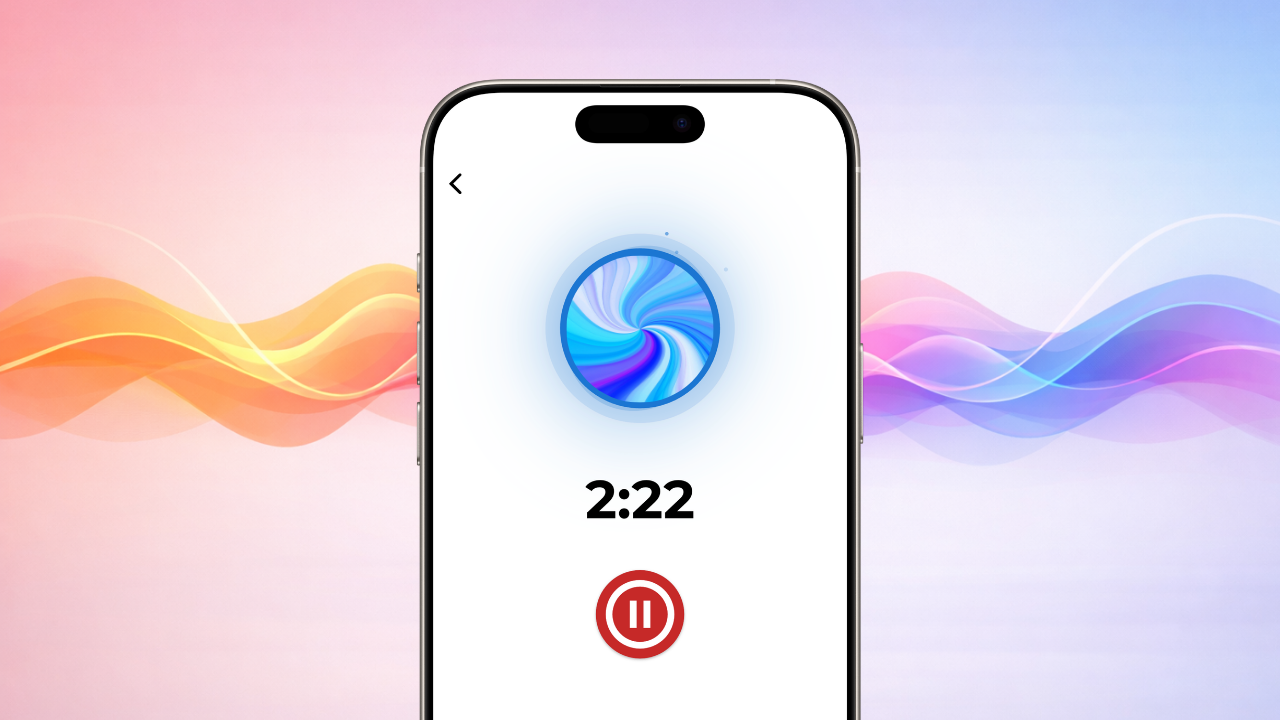
Roads Audio is a voice messaging app built around async group conversations. When blind users started discovering it organically, VoiceOver support became a priority shaped by direct feedback.
The app includes semantic labels throughout, so every button and control announces its purpose clearly. Navigation follows a logical flow through channels and messages. Rotor actions provide quick access to playback controls and common tasks like recording a new message.
But what users have noted most is responsiveness to feedback. Accessibility isn't a checkbox; it's an ongoing process. When blind users report issues or suggest improvements, those changes make it into updates quickly.
"The rotor actions make sense," one user said. "I can navigate channels, control playback, and record responses without fighting the interface."
How to Test if an App Works with VoiceOver
For anyone evaluating whether an app is truly VoiceOver compatible, here's a quick test:
Turn on VoiceOver (Settings → Accessibility → VoiceOver, or ask Siri). Then try to complete a basic task in the app using only gestures and audio feedback.
Pay attention to:
- Are all buttons and controls labeled clearly?
- Can you navigate through the interface in a logical order?
- Do hints explain how to interact with unfamiliar elements?
- Can you complete your task without getting stuck or lost?
If the answer to any of these is no, the app may technically "work" with VoiceOver but isn't truly accessible.
Accessibility as a Standard
VoiceOver compatibility shouldn't be a feature. It should be a baseline. Apps that treat accessibility as an afterthought create barriers for the millions of people who rely on screen readers daily.
The good news is that building accessible apps isn't complicated. It requires attention and intention, but the tools are all there. Apple provides extensive documentation. VoiceOver testing is built into every iPhone.
For blind and visually impaired users looking for apps that actually work, the best signal is often community feedback. Apps that listen to their users and iterate on accessibility tend to be the ones worth using.
Learn more about why voice-first apps work well for blind and visually impaired users.
Try Roads Audio Free Today
Roads Audio is designed to work seamlessly with VoiceOver. Download it and experience voice messaging that's accessible from the ground up.