TalkBack Compatible Apps: Android Accessibility That Actually Works
Published on April 5, 2026
TalkBack is Android's built-in screen reader, and it's essential for millions of blind and visually impaired users. But not every app that technically works with TalkBack is actually pleasant to use.
What TalkBack Does
TalkBack reads aloud what's on the screen and lets users navigate through touch gestures and audio feedback. Swipe right to move to the next element. Double-tap to select. Explore by touch to hear what's under your finger.
For Android users who are blind or have low vision, TalkBack is the primary way they interact with their phones. When an app is built with TalkBack in mind, everything works smoothly. When it isn't, users run into frustrating barriers that make basic tasks unnecessarily difficult.
Common Problems with TalkBack Support
Many apps claim Android accessibility support but fall short in practice. The issues tend to follow predictable patterns.
Unlabeled elements. Buttons that announce as "unlabeled" or just "button" without explaining what they do. Users are left guessing, or worse, accidentally triggering actions they didn't intend.
Custom controls that don't communicate. Developers sometimes build sliders, toggles, or pickers that look fine visually but don't provide any information to TalkBack. A volume slider that doesn't announce its current value isn't much use to someone who can't see the position.
Focus order that makes no sense. TalkBack moves through screen elements in a sequence. When that sequence jumps around illogically, users lose track of where they are in the interface. Good apps guide focus in a natural reading order. Bad apps scatter it seemingly at random.
Missing or unhelpful hints. TalkBack can announce hints that explain how to interact with elements. Apps that skip this leave users figuring things out through trial and error.
What Good TalkBack Support Looks Like
Apps that work well with TalkBack share certain characteristics. They're designed with accessibility as part of the process, not bolted on afterward.
Every interactive element is labeled clearly. Buttons say what they do. Icons have descriptions. Form fields explain what input they expect. There's no ambiguity about what anything is or how to use it.
Navigation follows a logical flow. Swiping through the interface moves in a predictable order that mirrors how the app is actually used. Related elements are grouped together. Users can build a mental map of where things are.
State changes are announced. When something on screen changes, TalkBack users need to know. If a button toggles between states, the new state should be announced. If content loads dynamically, users shouldn't be left wondering if anything happened.
Custom actions are available where they make sense. TalkBack supports custom actions that let users perform tasks without navigating through multiple steps. Thoughtful apps use these to streamline common workflows.
Testing TalkBack Compatibility
The best way to know if an app works with TalkBack is to try it. Turn on TalkBack (Settings → Accessibility → TalkBack) and attempt to complete a basic task using only gestures and audio feedback.
A few things to check:
- Can you identify every button and control by its spoken label?
- Does navigating through the app follow a logical sequence?
- When you interact with something, does TalkBack confirm what happened?
- Can you complete your task without getting stuck or confused?
Even a few minutes of testing reveals whether an app was built with screen reader users in mind or just barely passes technical requirements.
Roads Audio on Android
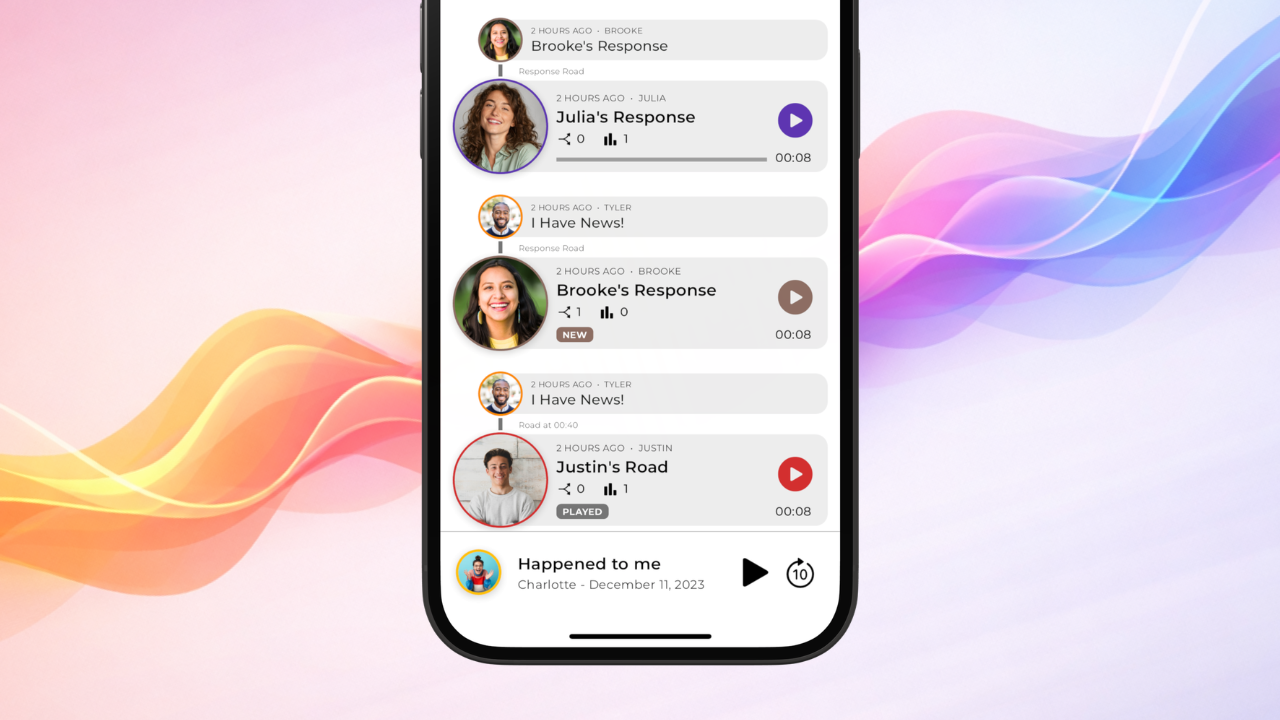
Roads Audio is a voice messaging app designed for async group conversations. The Android version is built with TalkBack support throughout, shaped by feedback from blind users who discovered the app and reported what worked and what needed improvement.
All buttons and controls have descriptive labels. Navigation flows logically through channels and messages. Playback controls are easy to locate and use. When users have suggested improvements, those changes have made it into updates.
"It's clear someone actually tested this with TalkBack," one Android user noted. "I can record messages, navigate between conversations, and control playback without any confusion about what's happening."
For more on how Roads approaches accessibility on iOS, see what makes an app truly VoiceOver compatible.
Why This Matters
Accessibility isn't a niche feature. Millions of people rely on screen readers to use their phones every day. Apps that treat TalkBack support as an afterthought exclude a significant portion of potential users.
The tools to build accessible Android apps are well documented and freely available. Google provides extensive guidance. Testing with TalkBack is built into every Android device. Building apps that work for everyone isn't complicated; it just requires intention.
For blind and visually impaired users evaluating apps, community feedback remains one of the best signals. Apps that actively listen to accessibility feedback and iterate based on real user experience tend to be the ones worth using.
Try Roads Audio Free Today
Roads Audio works seamlessly with TalkBack on Android. Download it and experience voice messaging that's accessible from the start.